How to Duplicate a Photoshop File
You need a second copy of the PSD you are editing, but File > Save As just turned that tab into the new file and left you hunting for the original. Here is how to duplicate a Photoshop file so the original stays open, and when a disk copy is the better move instead.
Duplicate a Photoshop File With Image > Duplicate
For an open document, Image > Duplicate is the command that actually duplicates the file in Photoshop. It sits in the Image menu, below Canvas Size.
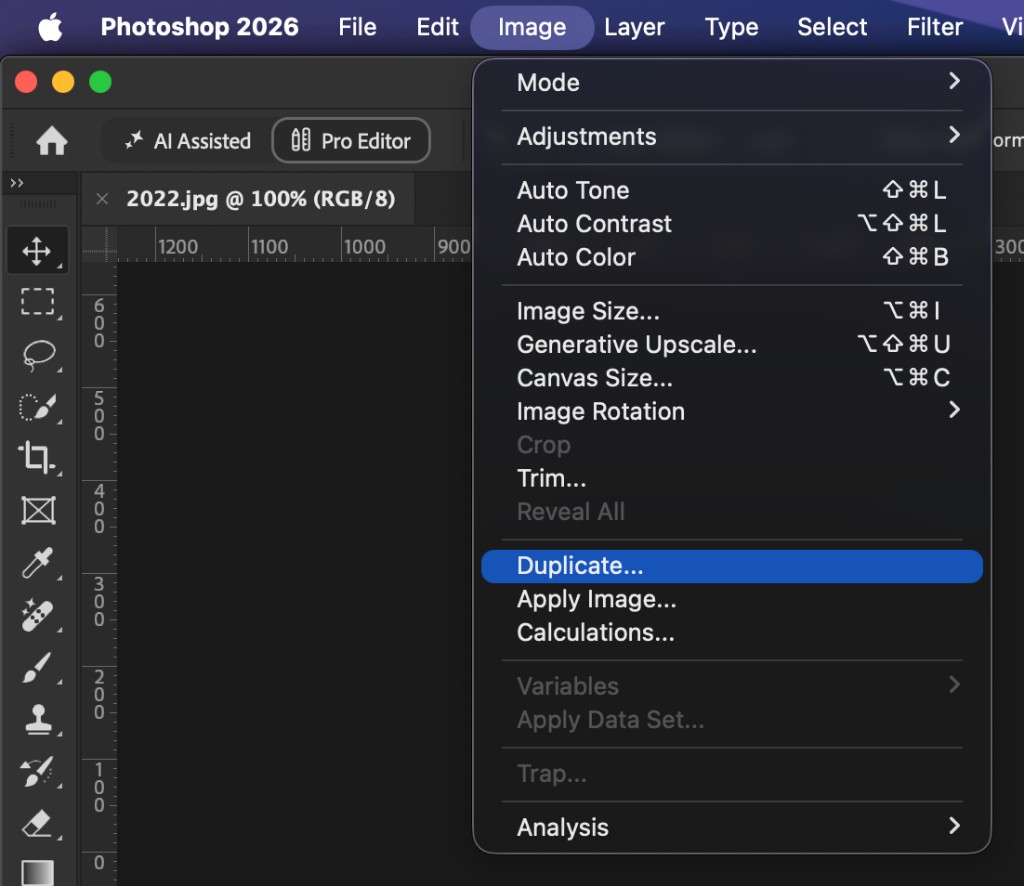
_The Photoshop Image menu with Duplicate selected. Use this to duplicate a file without Save As switching your tab.
- Bring the document you want to copy to the front.
- Choose Image > Duplicate.
- In the Duplicate Image dialog, name the copy. Leave Duplicate Merged Layers Only unchecked if you need every layer, group, and smart object intact.
- Click OK. Photoshop opens a new document that matches the source. The original tab stays put, still pointing at the same file on disk.
Save the copy when you want it on disk: File > Save or File > Save As on the new document only. Until you save, the duplicate lives in memory as an untitled (or newly named) working file. That is useful when you want a scratch version for a risky liquify, a flattened proof, or a variant you might throw away.
Check Duplicate Merged Layers Only when you want a single-layer snapshot of how the file looks, not a full layer stack. That is closer to a flattened copy than to a working duplicate.
There is no default keyboard shortcut for Image > Duplicate in most Photoshop installs. You can assign one under Edit > Keyboard Shortcuts if you duplicate files all day.
Why Save As and Save a Copy Are Not Duplicates
File > Save As writes a new file, then switches the current document to that new path. The original file on disk is still there, but the tab you were in is no longer that file. If you had unsaved edits, they now belong to the copy. This is the usual reason people feel like they "lost" the original after trying to duplicate it.
File > Save a Copy (Photoshop 2022 and later) writes a copy to disk and leaves you on the original document. It does not open the copy. Use it when you need a backup file in a folder, not a second document to keep editing next to the first.
Quick rule:
- Need both files open so you can compare or branch the work: Image > Duplicate, then save the new document.
- Need a backup on disk without another tab: File > Save a Copy.
- Avoid Save As unless you intend to continue working in the new file and close out the old path.
Duplicate the PSD on Disk, Then Open It
If the file is not open, or you want the copy named and stored before you touch it in Photoshop, duplicate it in the file system first.
On Mac, select the PSD in Finder and press Cmd+D, or right-click and choose Duplicate. On Windows, copy and paste the file in File Explorer, or hold Ctrl while dragging it to the same folder. Rename the copy, then open it with File > Open.
This path is clean for delivery variants (hero_v2.psd next to hero.psd) because the name exists on disk before you edit. It is slower when the source is already open with unsaved work, because a Finder copy will not include edits you have not saved yet. In that case, save the original or use Image > Duplicate instead.
Duplicate an Open PSD From a Document Panel
When many files are already open, repeating Image > Duplicate means activating the right tab first, every time. Plugins like DocManager Pro list every open document in one panel. Drag the file you want to copy and drop it on the duplicate drop zone at the bottom of the panel. The plugin creates a new document from that source without Save As, and without cycling tabs to target the right file.
Drag an open document onto the duplicate drop zone to create a new copy while the original stays in the list.
Save the new document when you want it on disk. Until then it behaves like an Image > Duplicate result: a second open file you can edit without touching the source.
Duplicate Selected Layers Into a New File
Sometimes you do not want the whole PSD. You want selected retouch layers, a color grade group, or a stamp in their own document.
Native Photoshop: in the Layers panel, select the layers, right-click, choose Duplicate Layer, and set Document to New. You can also drag those layers onto an empty area of the document bar in some layouts, though that is easy to miss with a crowded tab strip.
With the plugin, select the layers, hold Shift, then drag to the same duplicate drop zone at the bottom of the panel. On Mac you can drag the selected layers straight from Photoshop's Layers panel onto that drop zone. The new file gets those layers only, which is faster than duplicating the entire stack and deleting what you do not need.
Conclusion
To duplicate a Photoshop file and keep the original open, use Image > Duplicate, then save the new document. Use Save a Copy when you only need a file on disk. Skip Save As unless you want the current tab to become the new file. If you already have a batch of PSDs open and want to duplicate from a list instead of hunting tabs, try DocManager Pro.