How to See EXIF and Camera Data Across Open Photoshop Files
Photographers and retouchers often work with many open files that should share the same capture conditions. When something looks off, you want to confirm camera body, lens, ISO, and shutter speed without diving into each tab. Photoshop keeps rich file data, but the default UI pushes you toward one active document at a time. A document panel that lists technical details next to every open PSD makes comparison fast. Plugins like DocManager Pro surface that data for each file in the stack so you can scan EXIF-style fields across the whole session.
Why EXIF and Camera Data Matter in a Multi-File Session
Editorial and campaign work may mix shots from different cameras or assistants. E-commerce batches should usually align on resolution and color, and sometimes on capture settings when files are normalized together. If one PSD was saved from a JPEG with stripped metadata and another still carries full EXIF, downstream color or crop assumptions can drift. Spotting those mismatches early saves rework. The useful fields are often the same ones you would read in a metadata panel: camera model, lens, focal length, aperture, shutter speed, ISO, and creation date, alongside document properties such as dimensions and color profile.
Checking Metadata One File at a Time
File Info in Photoshop answers almost any question about the active document. The limitation is workflow speed. With twenty images open, opening File Info twenty times breaks rhythm. You also lose side by side comparison unless you write notes. Thumbnail strips help you recognize images but rarely show ISO or lens name. What helps is a list where each row is a document and columns or labels carry the technical summary, so your eyes move down the set instead of in and out of dialogs.
See EXIF and Camera Data in the Document Panel
With the plugin, important document and capture fields appear alongside thumbnails or in list style layouts, depending on how you configure the view. You can read name, dimensions, resolution, color mode, bit depth, color profile, create date, camera, lens, focal length, aperture, shutter speed, and ISO without activating every file. That is the practical meaning of seeing EXIF and camera data across open Photoshop files: one place, many documents, no repeated digging through menus.
DocManager Pro shows dimensions, resolution, color mode, bit depth, and capture metadata for open PSDs in one panel. Details are on the homepage.
Hide Labels When Camera or Lens Data Is Missing
Some documents have no EXIF for fields such as camera or lens. Showing "not available" on every row can clutter list view when you scan many files. The plugin can hide those labels when the information is missing so empty metadata does not add noise. You still see values wherever they exist.
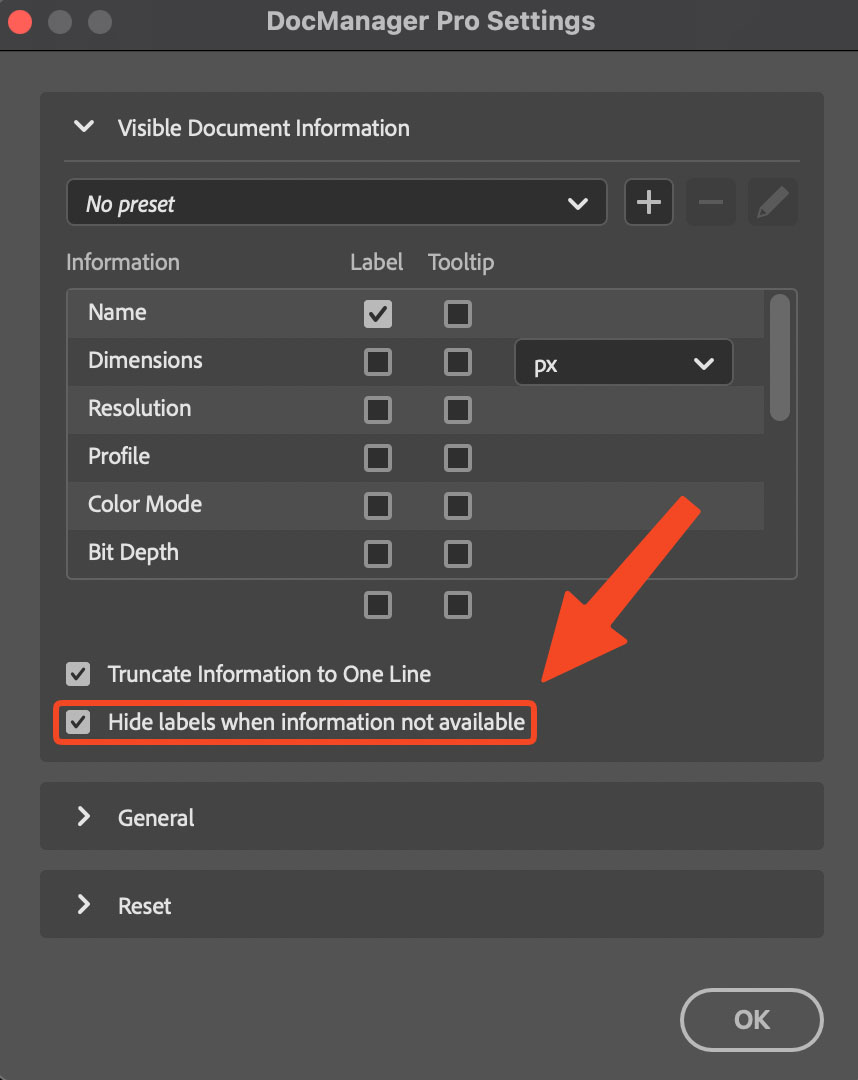
The plugin offers a setting to hide labels such as Camera or Lens when data is missing, as shown on the DocManager site.
When Metadata Is Missing or Different
Flattened copies, some exports, and certain smart-object workflows may drop or replace EXIF. A blank field in the panel does not always mean the plugin failed to read the file. It can mean the document no longer stores that property. Treat the panel as a quick audit: if two files should match and one shows camera data while the other does not, investigate before you batch retouch or deliver.
Conclusion
Seeing EXIF and camera data across open Photoshop files helps you validate a set before you commit hours of work. DocManager Pro brings those fields next to every open document so you compare capture and document specs at a glance. Retouchers who live in large PSD sets can also browse DocManager for Retouchers for workflow ideas beyond metadata checks.