How to Switch Between Photoshop Documents Quickly
When you have 15 or 20 PSD files open, switching between Photoshop documents quickly becomes a chore. Tab names shrink to illegible snippets, and you waste time clicking through to find the right image. There are better ways to navigate. This guide covers practical methods to switch between documents without the tab clutter.
Switch Between Photoshop Documents Quickly With Thumbnails
The fastest way to jump to the right file is to see it. Instead of reading truncated tab labels, use a thumbnail view where every open document appears as a small preview. You can identify images by sight and switch with a single click. Plugins like DocManager Pro offer a document panel with thumbnail previews for all open PSDs, so you can locate and activate any file at a glance.
DocManager Pro shows all open PSD files as thumbnails so you can switch between documents instantly. Try DocManager Lite for free.
Why Tabs Break Down With Many Documents
Photoshop's tab bar works well for a few files. Once you pass 10 documents, tab names get cut off and look alike. You end up hovering or clicking through tabs to find the one you need. For retouchers and photographers working on campaigns or batches, this adds up. A document panel with thumbnails sidesteps the problem entirely. You see the actual image, not a shortened filename, which makes switching between documents much faster.
Use List View When You Have Dozens of Files
When thumbnails alone feel crowded, list view can help. It shows document names in a compact list, often with a thumbnail on hover. You can scroll through many files quickly and still get a visual preview when you need it. Some panels let you toggle between thumbnail and list view, so you can choose the layout that fits your workflow. For high-volume retouching, list view keeps navigation fast even with 30 or more open documents.
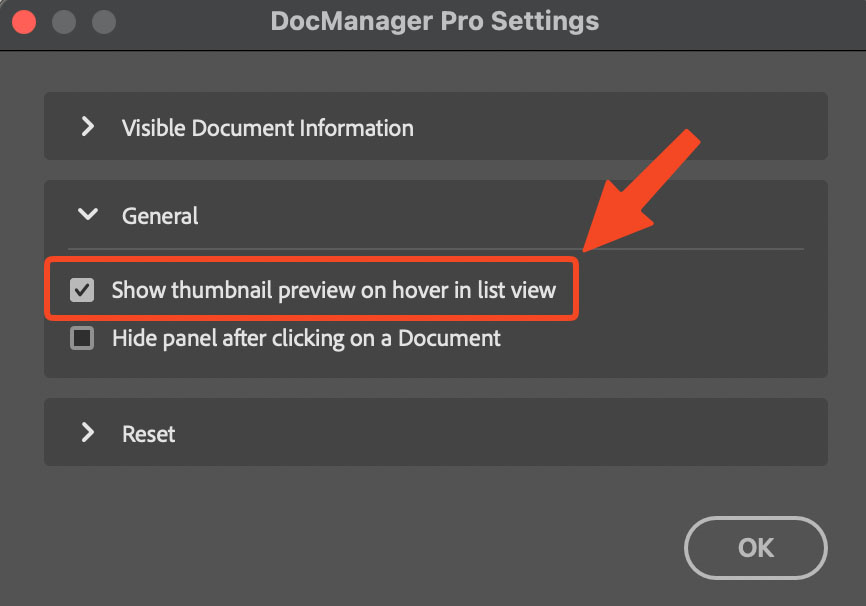
DocManager Pro supports both thumbnail and list view, with hover previews to identify documents at a glance.
Resize Thumbnails to Fit Your Workflow
Thumbnail size matters. Too small and you cannot tell images apart. Too large and you spend time scrolling. A resizable thumbnail panel lets you adjust the preview size to match your screen and the number of open files. When you switch between Photoshop documents quickly, the right size reduces clicks and eye strain. Look for a slider or setting to scale thumbnails so the panel works for you.
Conclusion
Switching between Photoshop documents quickly does not have to mean fighting the tab bar. Thumbnail previews and list view let you see and select the right file in one click. If you want a document panel that shows all open PSDs as thumbnails and supports list view, check out DocManager Pro, a plugin for Windows and Mac. Retouchers working on fashion or beauty campaigns can also explore DocManager for Retouchers for workflow tips.