Filter Open PSDs by Size, Color Mode, and Depth
You have thirty PSDs open and need every portrait at print resolution, or every 16-bit file before export, but the tab bar only shows truncated filenames. Filename search helps when you remember the name; it does not tell you which files are landscape, RGB, or still 8-bit. The steps below show how to narrow a large open set by document specs so you work on the right files first.
Start With Name Search, Then Add Spec Filters
Type in the panel search bar to shrink the list by filename as you work. That is fast when you know the client code or shot number. When the brief is spec-based instead, you need filters for orientation, pixel dimensions, resolution, color mode, color profile, and bit depth. Open the Document Filters dialog from the panel header and set only the criteria that matter for this pass. DocManager Pro applies those filters to every open PSD in the panel, so hidden files stay open in Photoshop but out of your way until you clear the filter.
DocManager Pro filters open documents by orientation, dimensions, resolution, color mode, color profile, and bit depth from one dialog.
Filter by Orientation, Dimensions, and Resolution
Campaign sets mix hero portraits, detail crops, and delivery sizes. Filter by orientation to surface every portrait file before you paste a grade across the set. Set dimensions or resolution when the brief calls for a specific print size or pixel count, for example all files at 300 ppi before handoff. You avoid opening each PSD to read Image Size and you see only the matches in the thumbnail list.
Filter by Color Mode, Profile, and Bit Depth
Export mistakes often come from mixed color modes or bit depths in the same batch. Filter by color mode to list only RGB or CMYK files before a web or print export pass. Narrow by color profile when one deliverable must use a specific working space. Use bit depth to pull every 16-bit document for a final pass, or every 8-bit file that still needs conversion. The plugin reads these values from each open document, so you do not open File Info on every tab.
Know When Filters Hide Files and Reset Quickly
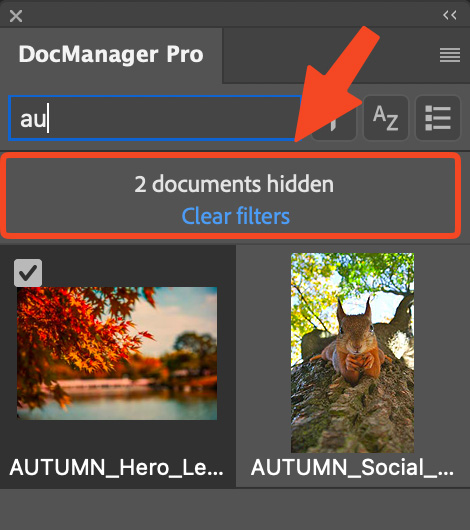
Active filters hide documents that do not match, which is the point, but you still need to know you are looking at a subset. When filters hide some open files, the panel shows how many are hidden and offers a control to clear all filters without reopening the dialog. After you batch-save or copy layers across the filtered set, clear filters to return to the full list and pick the next group.
Practical Filter Combinations for Retouching Sets
Use these patterns on large open batches:
- Portrait + print resolution before applying a skin grade across a fashion lookbook.
- 16-bit + RGB before a final color pass on beauty files.
- Landscape + specific dimensions when only horizontal hero frames need a background swap.
- Name search + orientation when you know the series prefix but still need only vertical crops.
Check the filtered thumbnails, select the files you need, then run save, close, export, or layer copy on that group.
Conclusion
Filtering open Photoshop documents by size, color mode, and bit depth turns a cluttered tab bar into a short, spec-accurate list. Name search finds files you already know; orientation, resolution, and bit-depth filters find the ones that match the brief. If you want advanced document filters on every open PSD alongside thumbnail navigation on Windows and Mac, try DocManager Pro.