Fix Scratch Disk Full When Many PSDs Sit Open
Photoshop just blocked a brush stroke or a save with scratch disks are full, and a row of large PSDs is still open. That error is often those documents eating RAM and overflow disk, not a drive that is actually dead. Close the files you do not need, then purge history and point Photoshop at a volume with space.
Why Scratch Disks Fill When Many PSDs Sit Open
Photoshop uses RAM first. When RAM runs out, it writes overflow to the scratch disk, a working volume you pick in Settings. Each open 16-bit retouch file, its History states, and a large clipboard all count. Twenty campaign PSDs can fill scratch even when another drive still shows free gigabytes, because Photoshop may only use the disks you assigned.
Check the live cost before you change preferences:
- Look at the status bar at the bottom of the document window.
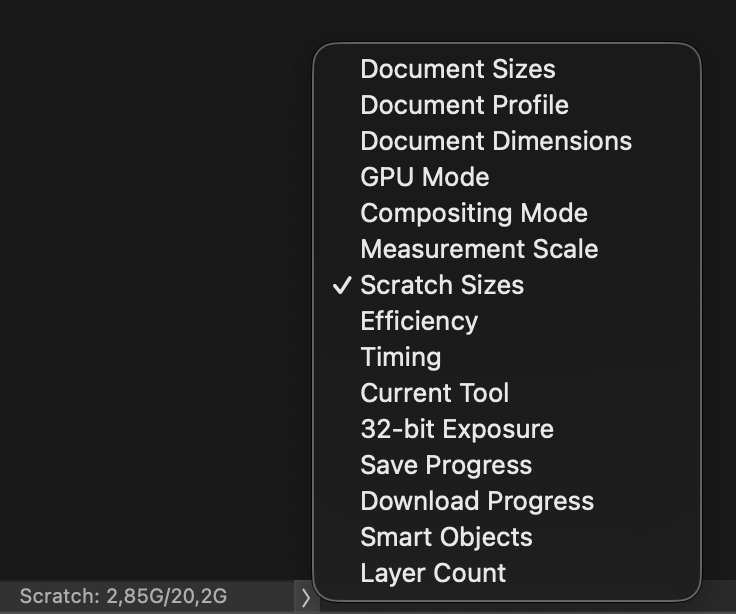
- Click the status readout and choose Efficiency or Scratch Sizes.
- Efficiency under 100% means Photoshop is already spilling to disk. Scratch Sizes shows how much virtual memory the session is using.
If those numbers jump every time you open another hero, closing unused files is the fastest fix.
Close Unused Files Before You Purge
Edit > Purge deletes undo data. Closing unused documents frees RAM and scratch without wiping History on the files you still need.
- Save anything you cannot lose. Use File > Save on the active document, then repeat for other tabs you will keep.
- Bring one keeper to the front.
- Choose File > Close Others to dump every other open file. Photoshop prompts if a file has unsaved changes.
- If the whole session should go, use File > Close All instead.
- If you need a mixed close (eight files out of twenty), the tab bar has no checkboxes. You either close tabs one by one or use a document list, covered below.
Do not flatten working retouch files to save space unless you have a copy. Flattening is permanent for that document.
After a large close, quit and reopen Photoshop if the error persists. Quit releases scratch temp files that Close does not always drop immediately.
Purge History, Then Assign a Disk With Space
Once the extra tabs are gone and the error still appears:
- Choose Edit > Purge, then Clipboard, Histories, or All. Purge cannot be undone. Use All only after you have saved.
- Copy a tiny selection (a 1 px marquee is enough) if you just copied a whole layer stack. That replaces a huge clipboard without opening the Purge menu.
- Open Edit > Preferences > Performance (Windows) or Photoshop > Settings > Performance (Mac). Lower History States if you keep 50 or more. Fewer states means less scratch per file.
- Open Scratch Disks in the same Settings or Preferences list. Check an internal SSD with the most free space. Uncheck the system drive if another fast disk has more room. Avoid network volumes and SD cards.
- Click OK and restart Photoshop so the new scratch disk is used.
Adobe needs a writable disk with real free space. A drive that reports space but is failing, permission-locked, or nearly full will still throw scratch disks are full.
See Every Open PSD Before You Close the Rest
DocManager Pro is a Photoshop plugin that lists every open document in one panel. You see full filenames and thumbnails, then right-click to Close, Close Others, Close All, or Close Selected. That is the mixed close the tab bar cannot do: dump the approved files, keep the two still in progress, and get scratch back without guessing from truncated tabs.
Close one file, others, all files, or only the documents you check, so unused PSDs stop eating scratch.
The plugin shows every open PSD as a thumbnail so you keep files still in progress and close the rest.
When a batch is done, save the group, then close that same group. Leaving yesterday's campaign open overnight is a common way to start the next day already on scratch.
Conclusion
To fix a Photoshop scratch disk full error when many PSDs sit open, close unused documents first, purge clipboard and history after you have saved, then assign an SSD with free space and restart. If you want a list of every open file with close options on a right-click, try DocManager Pro.