Resize Many Open Photoshop Files to the Same Size
You already have a stack of documents open, and they need to match one size before export, but Image Size only changes the file in front of you. Here is how to resize many open Photoshop files to the same size for web, social, or print, without closing the set or repeating the dialog in every tab.
Decide What Same Size Means
Same size is not one setting. Pick the rule that matches the brief, then record it once.
- Same pixel width (or height). Typical for web heroes, email, and social crops where one edge must match. Use Image > Image Size, turn Resample on, keep the aspect ratio constrained, and set only that edge. The other edge follows.
- Same bounding box. Typical when every file must fit inside 2000 × 2000 px (or any max width and height) without stretching. Use File > Automate > Fit Image and enter both maxima. Check Don't Enlarge so files already inside the box keep their original pixels. Portrait and landscape files both fit the box; they will not share both width and height unless they already share an aspect ratio.
- Same physical size at a resolution. Typical for print. In Image Size, switch units to inches or centimeters, set width and height, and set resolution (often 300 ppi). Leave Resample on if pixel dimensions must change to hit that print size. Turn Resample off only when you want to change print size or ppi without changing pixels.
Do not use Image > Canvas Size for this job. Canvas Size changes the work area. It does not scale the photo the way Image Size and Fit Image do.
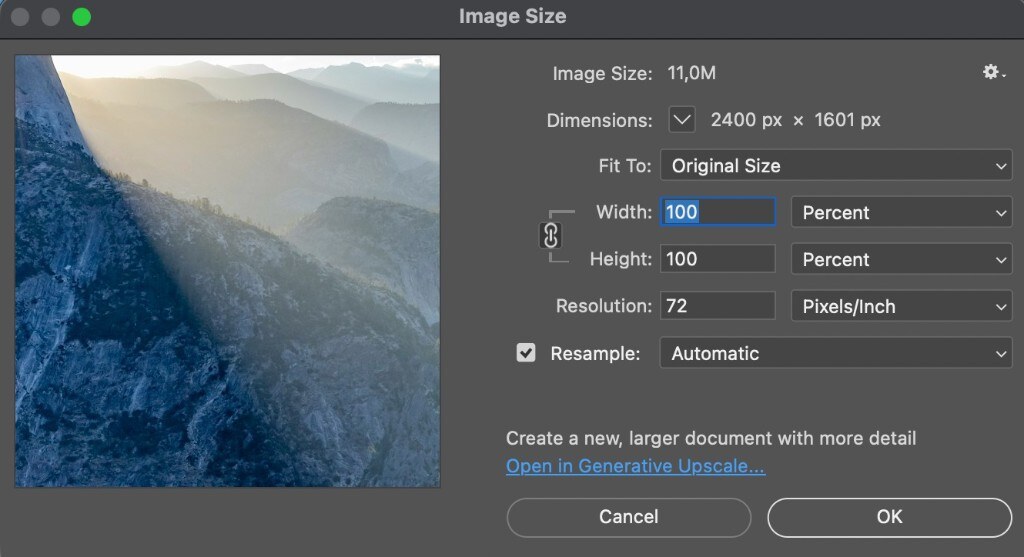
Image Size changes the front document only.
If the set mixes 4:5 portraits and 16:9 wides, an exact width-and-height target will distort or require a crop first. Fit Image (or Image Size on one edge) is the safe path when aspect ratios differ.
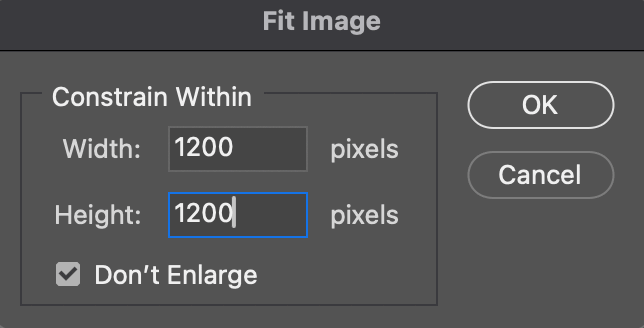
Fit Image constrains each file inside a max width and height, here 1200 px. Don't Enlarge keeps smaller files from being scaled up.
Record One Correct Resize on a Single File
Photoshop has no “make every open document 2000 px wide” button. You teach it once with an action, then play that action on many files.
- Duplicate one typical document (or work on a copy) so you can undo freely.
- Open Window > Actions. Create a new action, name it something like
Resize to 2000 wide, and click Record. - Run the resize you chose:
- Image > Image Size for a shared edge or a shared print size, or
- File > Automate > Fit Image for a shared max box.
- Click Stop. Play the action once on another copy and confirm the result in Image Size.
Keep the action short: only the resize. Put Save As or export in a second action if you still need to review files after they change size. If you need to inspect dimensions before you commit, check image size on a couple of files first.
File > Scripts > Image Processor can also resize. It is built for a folder on disk (or every open file) and writes new JPEG, PSD, or TIFF copies with Resize to Fit. Use it when you want new files. Use an action when the documents are already open and should stay open at the new size.
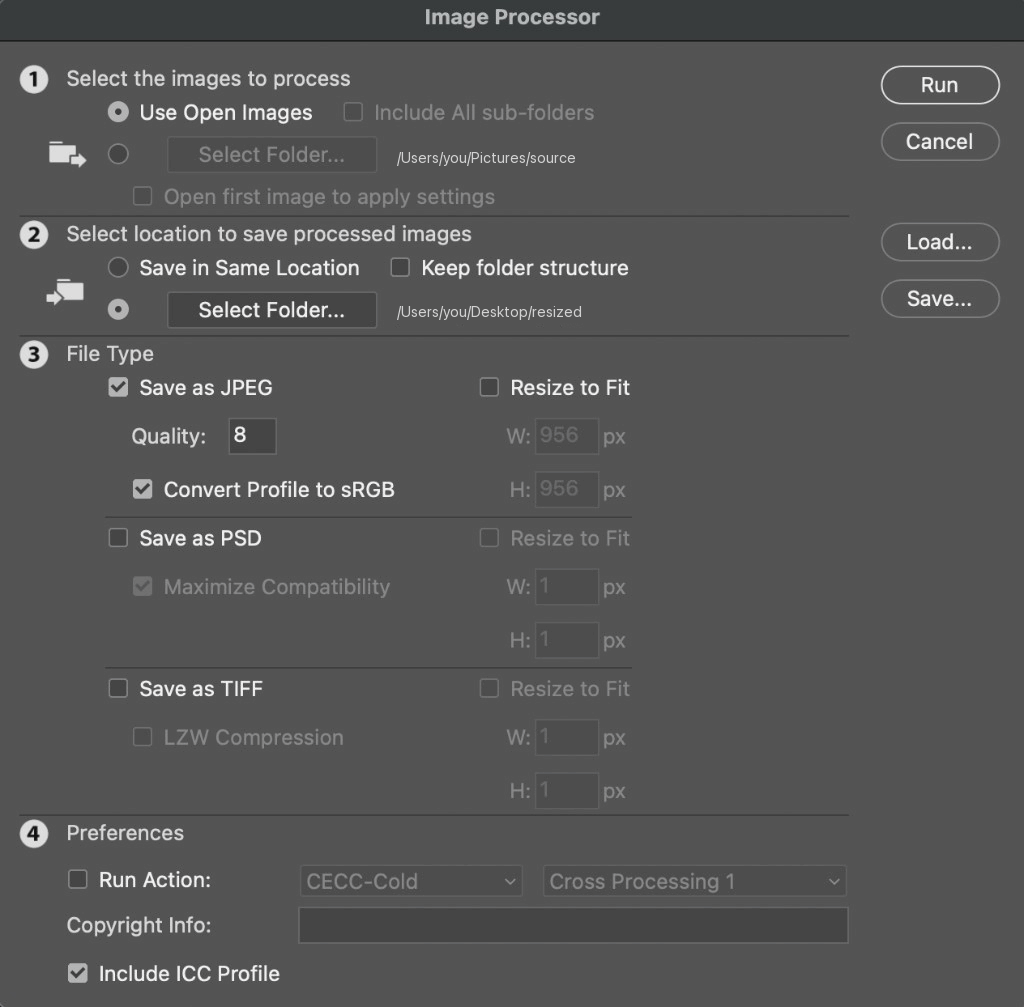
Image Processor with Use Open Images selected. Turn on Resize to Fit in step 3, then Run to write new copies to a folder.
Resize Many Open Files With Batch or an Action
To run the recorded resize on documents that are already open:
- Choose File > Automate > Batch.
- Under Play, pick the set and the resize action.
- Under Source, choose Opened Files.
- Under Destination, choose None if you want the files to stay open so you can review them. Choose Save and Close only when you are ready to write and close the whole session.
- Click OK.
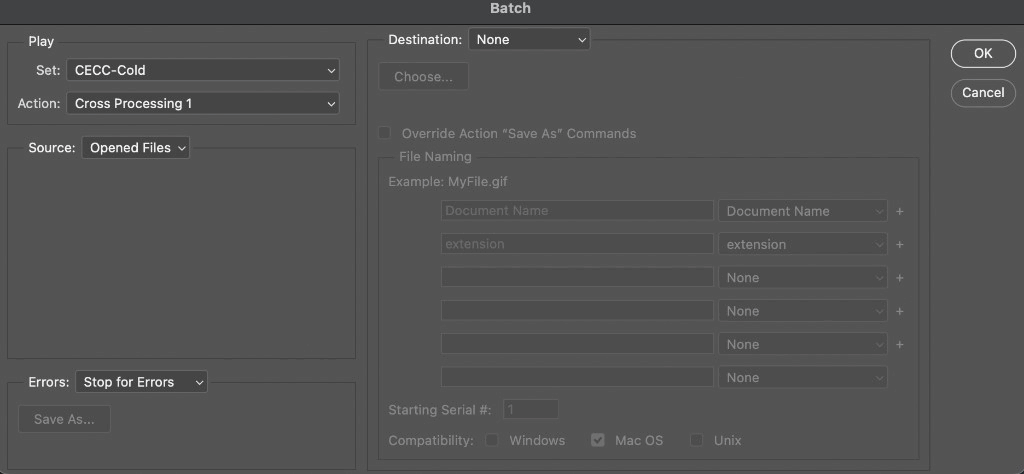
Batch with Source set to Opened Files and Destination set to None. Under Play, choose your resize action, not a color action like the example here.
Opened Files is all or nothing. Photoshop plays the action on every open document. Close or skip anything that should keep its original size, such as a logo, a master composite, or a file that is already at the target.
When only some open files should change, you need a selection, not a full-session Batch. Plugins like DocManager Pro list every open document in one panel. Check the files that need the resize, then play the same Photoshop action on that selection. Unchecked documents stay as they are.
DocManager runs a recorded resize action on the open files you select, not on every tab.
For a longer comparison of Batch, Image Processor, and open-document jobs, see Photoshop batch edit.
Check Sizes First So You Skip Files That Already Match
A mixed session often includes files that already hit the spec. Resizing those again (especially with Fit Image into a smaller box) is a one-way quality loss.
Before you play the action, scan width, height, and resolution across the open set. The plugin can show those values next to each document so you uncheck files that already match, then run the action only on the rest. Switch to list view when you want a compact spec list instead of guessing from tabs.
Width, height, and resolution appear for every open document, so you can skip files that already match the target size.
After the run, spot-check two or three files with Image > Image Size (Ctrl+Alt+I on Windows, Cmd+Option+I on Mac). Confirm resample did what you intended, especially if some files were print-resolution and others were 72 ppi web files in the same session.
Conclusion
To resize many open Photoshop files to the same size, decide whether you need a shared edge, a shared bounding box, or a shared print size, record that step as an action, then play it on the open set. Use Batch with Opened Files when every document should change. When only some should, select those files and play the action on that group. If you want that selection plus size readouts in one panel on Windows and Mac, try DocManager Pro.